


Sketch Pro: Draw & Create Art
4.61.19K Reviews
App Specs
- Version
- 2.1.0
- Updated On
- License
- Free
- Downloads
- 1,000,000+
- Developer
- 4Axis Technologies
- Categories
- Art & Design
- Platform
- Android, iOS
Screenshots
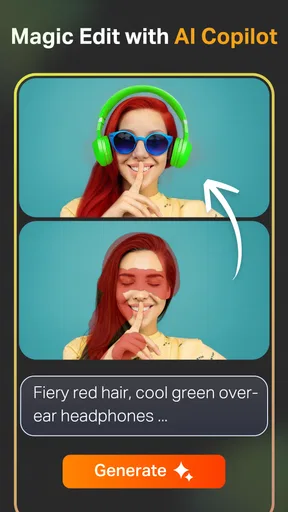
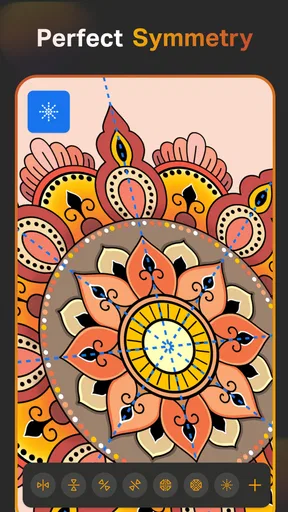
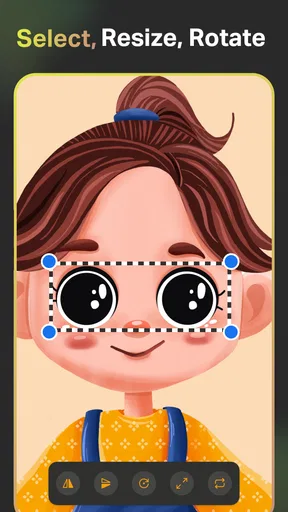
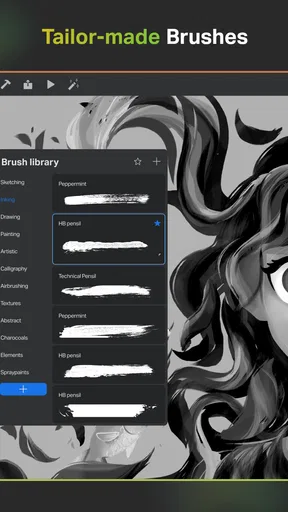
 Analysis by AppCompare
I reach for a drawing app when I have a few spare minutes and an idea I don’t want to lose. Sketch Pro: Draw & Create Art is aimed at that kind of quick start: it’s an art-and-design app from 4Axis Technologies, with a focus on making digital illustrations and anime or manga-inspired art. My first impression is that it makes getting a canvas going feel approachable, while still offering tools that invite more deliberate work. That balance matters: a beginner shouldn’t have to learn a complicated interface before sketching, but someone developing a character should have room to refine the result.
Quick starts, with room to settle in
The app opens quickly in my experience, which is useful when I’m trying to capture an idea rather than set aside a whole drawing session. Its clean layout keeps the starting point from feeling crowded, and the brushes and color choices are easy to find. For a warm-up sketch, a rough pose, or a small color study, that low-friction entry is a real advantage. I wouldn’t mistake a fast start for proof that every demanding project will feel equally light, though: a simple doodle and a canvas with many edits ask different things of a drawing app.
A practical way to use it is to begin with the broad shapes instead of immediately polishing details. I’d block in a character’s silhouette with a straightforward brush, zoom in only after the proportions feel right, then use separate layers when I’m ready to add clothing, facial features, or a background. That order makes revisions less intimidating. If the pose is off, I can focus on changing the sketch rather than disturbing finished linework and color.
First Impressions: A Smooth Start
When you first open Sketch Pro: Draw & Create Art, the interface greets you with a clean and intuitive design. No overwhelming menus or complicated settings to navigate through. I found the layout to be pretty straightforward, which was a relief. It immediately gives you that "I can do this" feeling. The app is user-friendly and doesn’t intimidate you with too many options right off the bat.
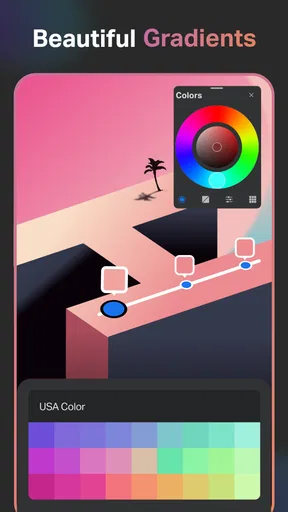
The homepage features a variety of tools and brushes, and the color palette is just a tap away. Whether you’re into sketching, painting, or creating digital illustrations, there’s something here for everyone. The app loads quickly, which is always a plus, especially when you’re bubbling over with creativity and ready to get started.
Diving into the Features
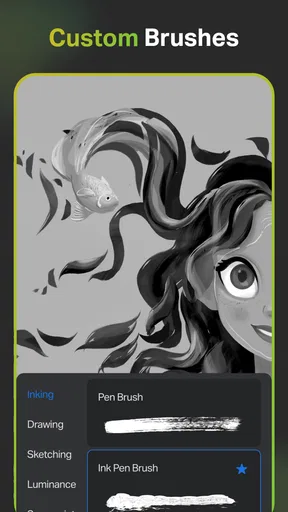
Now, let’s talk about the features. The app offers a wide range of brushes that mimic real-life drawing tools. From pencils and pens to watercolor brushes and airbrushes, you can experiment endlessly. I spent quite a bit of time just playing around with these tools, and the level of precision they offer is impressive.
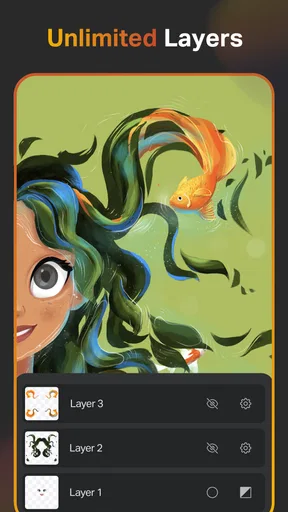
One feature that really caught my eye was the layering system. It allows you to work on different elements of your artwork separately, which is a lifesaver when you’re trying to perfect your masterpiece. You can easily add, delete, and merge layers, which makes the whole process so much more manageable. It’s like having Photoshop-level capabilities in your pocket!
Worth Reading Before You Choose

EA SPORTS FC Mobile 26 Is a Bigger Football Game, but It Takes Time

Flipboard Shows What News Apps Must Do Beyond the Feed

Switching to Android Auto Means Rethinking Your Driving Routine

Google Calendar Makes a Crowded Week Easier to Manage

Ludo King Makes the Most of the Minutes Between Plans

Baby Panda World Brings Quick Play to Modern Phones, but Its Game Library Feels Busy
The app also includes a variety of blending modes that can give your artwork that extra touch of magic. Whether you’re looking to create smooth transitions or add some texture, these tools are incredibly handy.
Keeping complex pieces manageable
The layering system is most useful when I give each part of an illustration a clear job. For a manga-style portrait, I’d keep the rough construction separate from clean lines, then put flat colors and shadows on their own layers. If a color choice feels wrong, I can adjust that part without redrawing the face. This is a more reliable workflow than painting everything onto one layer, especially when I’m still deciding on the design.
There is a trade-off: layers help with revisions, but they can also make a project harder to manage if I create them without a plan. I’d name or organize them as I go where the interface allows, and merge only after I’m confident that a section is settled. Merging too early saves clutter but removes some freedom to revise. For a quick doodle, separate layers may be unnecessary; for a character sheet or a more finished illustration, they can save time later.
Brush choice deserves the same kind of restraint. A textured brush can add personality, but it may obscure a clean outline if I use it before the drawing is settled. I’d test a brush with a few short strokes in an empty area or on a disposable layer before committing it to the main artwork. That small habit is especially helpful when switching between a fine line for facial features and a broader brush for color, because it keeps the visual style consistent rather than letting every tool compete for attention.
Creating Your Masterpiece
Once I got the hang of the tools, I dove right in. The app’s performance was smooth, with no noticeable lag even when using more complex brushes. I could easily zoom in and out for those intricate details, and the ability to undo and redo actions made experimenting feel less risky.
For a realistic everyday session, I can picture opening it during a commute or a quiet break, sketching a character’s expression, and saving the rough idea before returning to it at home. On a small phone screen, I’d keep the first pass simple and avoid trying to finish tiny details with a fingertip; zooming in helps, but it also means more panning and repeated adjustments. A tablet gives the drawing more room to breathe, especially for longer sessions. A stylus can make controlled linework easier, but I wouldn’t treat owning one as a prerequisite for trying the app.
Undo and redo make experimentation feel safer, but they are not a substitute for a deliberate workflow. I’d save a clean version before trying a major color change or merging layers, then keep the original sketch untouched until I’m happy with the new direction. That habit is useful in any illustration app, but particularly when a piece is evolving from a loose anime face into a more polished design. It gives me a way back if the experiment doesn’t improve the image.
Sharing, saving, and choosing the right tool
I also loved the app’s export options. You can save your work in various formats, including PNG and JPEG, which means you can easily share your creations on social media or print them out. Plus, there’s a community feature where you can upload your artwork and get feedback from fellow artists. It’s a great way to connect and get inspired by others.
For sharing a finished piece, I’d choose the format based on what I plan to do next: PNG is a sensible pick when I want a crisp image, while JPEG is handy for a broadly compatible picture to send or post. If I expect to revise the illustration later, I’d keep the editable project in the app rather than relying on an exported image as my only copy. Exports are useful endpoints for sharing, but they are not the same as preserving a layered working file.
The community option may suit someone who wants to show work and hear reactions without leaving the drawing environment. I’d use it as a source of encouragement and fresh ideas, not as a replacement for a carefully chosen critique group. Feedback is most useful when I ask a specific question, such as whether a pose reads clearly or a palette feels coherent, instead of simply hoping that a finished image will attract detailed advice.
Compared with a basic phone sketchpad, this app gives me more ways to build an illustration in stages through brushes, layers, and blending modes. That makes it better suited to developing a character or painting than to jotting a one-line note. On the other hand, artists who already rely on a specialized desktop workflow, or who need a particular advanced production feature, may prefer to stay with their established tools. I see this as a convenient drawing space rather than a promise to replace every professional art program.
Who will enjoy it, and where it may frustrate
I’d recommend trying it if you’re learning digital drawing, enjoy anime or manga-inspired character art, or want a mobile place to practice without facing a wall of controls. It can also suit an experienced artist who wants to rough out ideas away from a desk. The balance shifts for people who mainly need photo editing, vector graphics, or a large-screen workstation: a drawing-and-painting app is not the best match for those jobs, and a phone can make long, precision-heavy sessions tiring.
Performance is always worth judging against the size and complexity of the work. My experience with smooth drawing and responsive zooming is encouraging, but a project with many layers and repeated edits is a heavier test than a short sketch. If a device feels strained, I’d keep the canvas focused, avoid unnecessary layers, and save a simpler working version before adding more detail. Those are sensible habits rather than guarantees that every device will behave identically.
The app is free to start, with optional in-app purchases priced from $0.99 to $19.99 per item. I’d begin with the tools available before paying for anything, then decide whether a specific purchase would solve a real need in my workflow. That keeps the choice practical: an occasional sketcher may have no reason to spend, while someone who draws often can judge the value based on the options they actually use. The app is rated for Everyone, and its current version is 1.4.5; it requires Android 8.0 or later.
The Verdict: Is It Worth It?
Overall, I was quite impressed with Sketch Pro: Draw & Create Art. It’s an app that combines simplicity with powerful features, making it accessible to artists of all skill levels. Whether you’re sketching on the subway or working on a detailed piece at home, this app has got you covered.
One of the best parts? The app is available for both Android and iOS, so no matter your device, you can dive into your creative flow. If you’re looking for a versatile and reliable drawing app, I’d definitely recommend giving Sketch Pro a try. Who knows? You might just create your next masterpiece!
Popularity and my final recommendation
It has a 4.6 average from around 12,000 ratings, and more than a million installs, which suggests that plenty of people have found a reason to try it. I’d read that popularity as useful context, not proof that it will suit every drawing habit. My recommendation is to approach it as a friendly mobile studio for sketching, painting, and developing illustrated ideas, especially if you’re drawn to anime and manga art.
For me, its strongest appeal is the combination of an easy entry point with tools that can support a more considered piece: I can start with a rough line, build separate elements, test blending, and export when I’m ready to share. The main question is whether that workflow fits the device and the kind of art I want to make. If it does, this free app is worth trying; if I need a specialized desktop setup or simply want to jot quick notes, I’d choose a tool designed for that instead.
Pros
- Intuitive interface for easy navigation.
- Wide variety of brushes and tools.
- Supports high-resolution canvases.
- Layer management is seamless.
- Frequent updates with new features.
Cons
- Ads can be intrusive during use.
- Limited free version features.
- Occasional lag on older devices.
- Requires internet for full functionality.
- No direct integration with cloud storage.
FAQs for Sketch Pro: Draw & Create Art
What features does Sketch Pro: Draw & Create Art offer?
Sketch Pro offers a variety of features for artists, including a wide selection of brushes, customizable color palettes, and layer functionality. It also supports high-resolution canvases and offers tools like rulers and guides for precise drawing. The app includes a community platform for sharing and discovering art by other users.
Is Sketch Pro suitable for beginners?
Yes, Sketch Pro is designed to be user-friendly for beginners while offering advanced features for experienced artists. The app includes tutorials and guides to help new users get started, making it easy to learn the basics of digital drawing, painting, and sketching.
Does Sketch Pro support multiple file formats for export?
Sketch Pro supports exporting artwork in various file formats, including JPEG, PNG, and PSD, allowing for easy integration with other graphic design software. This flexibility is beneficial for artists who need to collaborate or transfer their work to different platforms.
Are there any in-app purchases in Sketch Pro?
While Sketch Pro offers a free version with essential tools, it also includes in-app purchases for advanced features. These may include additional brush packs, extended cloud storage, and premium tutorials. Users can decide whether to upgrade based on their artistic needs and budget.
How does Sketch Pro handle device compatibility and performance?
Sketch Pro is optimized for both Android and iOS devices, ensuring smooth performance across different models. It uses efficient algorithms to minimize lag and maintain responsiveness, even when working on large canvases or using multiple layers, making it a reliable choice for digital artists.


